This article describes how users can check the storage usage in their subscription after receiving a notification about exceeding storage limits. The guide includes steps to check storage usage for web data, emails, and databases through the Plesk menu. It explains how to access the statistics, view storage usage graphically, and get detailed information about each area. The statistics are updated overnight, so changes will not be immediately visible. The article also provides instructions on using SSH for detailed storage analysis.
Initial Situation
| You have received an email from us regarding a storage space overage and want to know how the storage usage is distributed in your subscription. |
We are happy to show you below how you can display the storage usage.
Please note that this display is updated overnight. Therefore, any cleanups will not be immediately visible.
-
Click on the menu item Statistics.
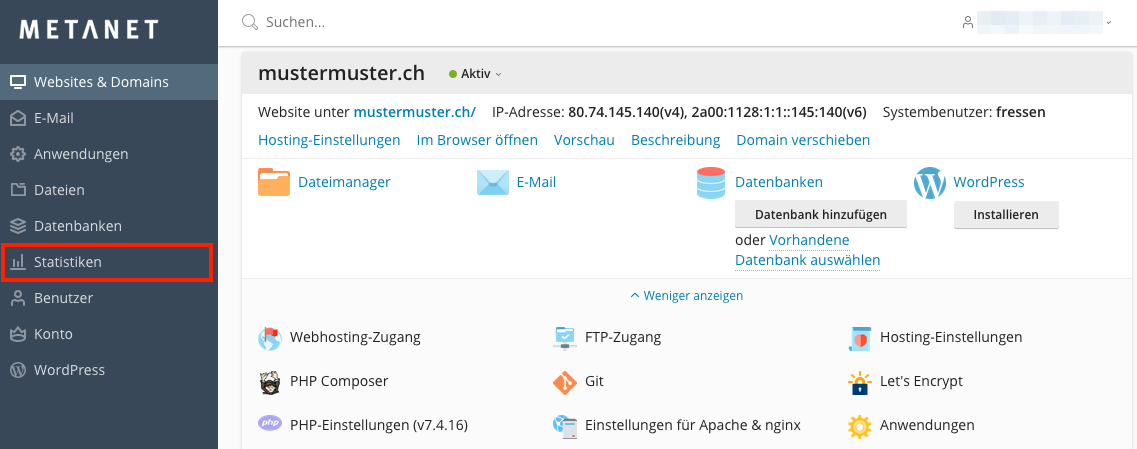
- You will now see a graphical overview of your storage usage. This overview roughly shows how the data is distributed in your subscription. However, you can examine the individual areas more closely. Please refer to the instructions below.
-
Traffic is not included in the storage space calculation.
Web Data
Databases
Web Data
-
To check the storage usage of your web data, click on the menu item Files.
-
Select the desired folders. You can select all folders using the topmost checkbox.
-
Click on More and then on Calculate Size.
-
Plesk will now show you both the total size of all selected items and the size of the subfolders.
-
Repeat this step for additional subfolders if you want to check their content size as well.
If you want to read the web data via SSH, you can use the following command in the console.
user@server /> du -h --max-depth=1 desired/path/
-
To check the storage usage of your mailboxes, click on the menu item Email.
-
You will now see the storage consumption of each account in the Usage column. You can update the statistics by clicking the Update Usage Statistics button.
Databases
-
To check the storage usage by the databases, click on Databases in the menu.
-
You will now see an overview of all your databases including the size of each database.